

Help center
How to use Ordyum, step by step
Step-by-step guides with real screenshots of the CRM: the same guide your team sees inside Ordyum.
A one-minute tour
The main screens of the CRM with sample data, in your language. It moves on by itself; pause it or go at your own pace.
1 of 9
Your dashboard
It’s the first thing you see when you sign in. It sums up how the month is going and what needs your attention today.
In this guide
Chapter 1
What a CRM is (in two minutes)
A CRM is the shared notebook of everyone you sell to. Instead of WhatsApp chats, spreadsheets and sticky notes, every interested person, what you talked about and what to do next live in one place your whole team can see.
- 1Lead
- Someone who has just shown interest: filled in a form, clicked an ad or wrote to you.
- 2Contact
- The person’s card: name, phone, email, where they came from and everything you’ve done with them.
- 3Deal
- A possible sale, with an amount. One contact can have several.
- 4Pipeline
- The stages a deal goes through, from first contact to won or lost.
- 5Task
- The next thing to do, with a date: call, send the quote, follow up.
Chapter 2
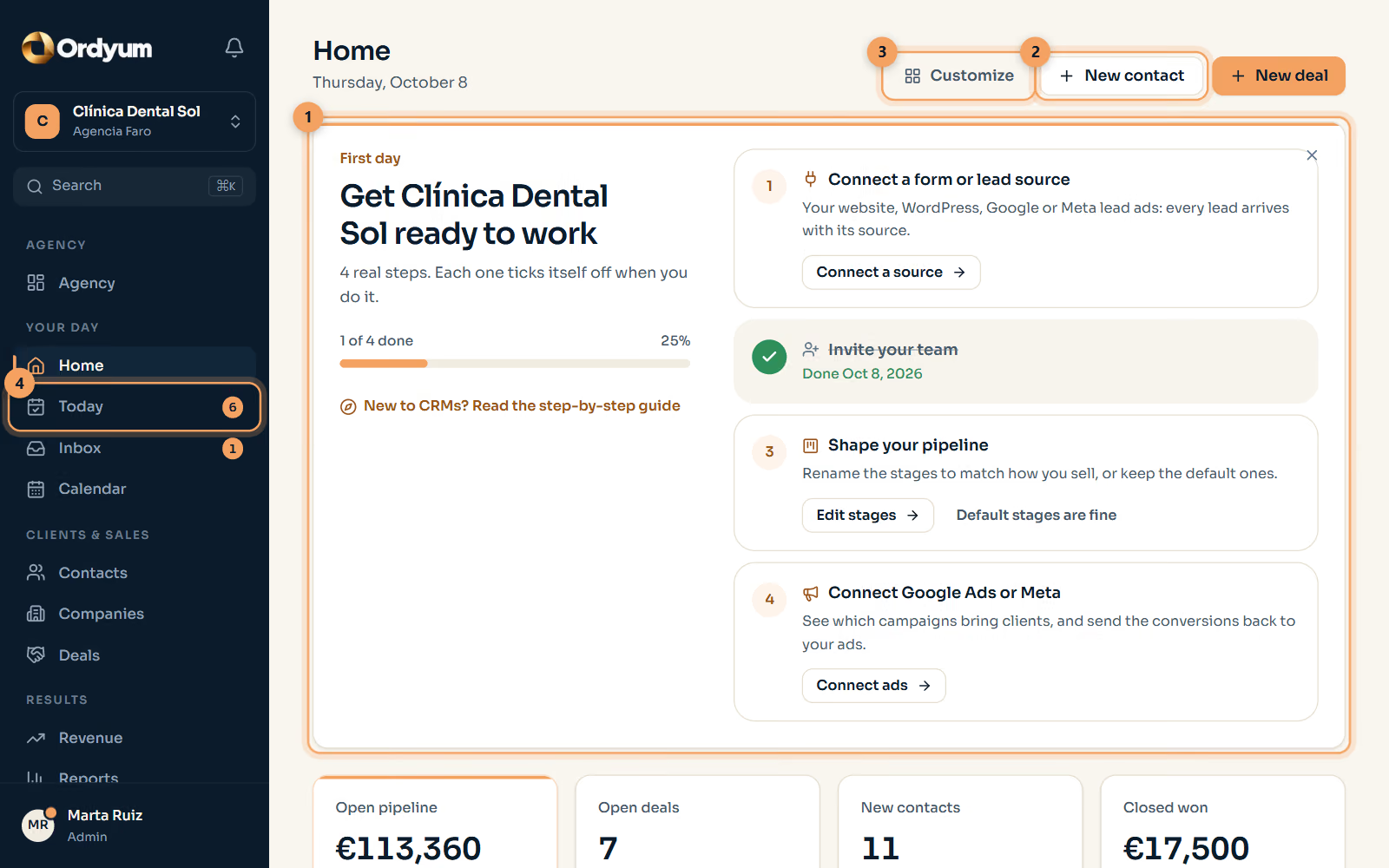
Your dashboard
It’s the first thing you see when you sign in. It sums up how the month is going and what needs your attention today.
- 1First day: a checklist to get the space ready. Each step ticks itself off when you do it, and you can hide the list.
- 2New contact and New deal: add a person or a possible sale without leaving the dashboard.
- 3Customize: choose which panels you see (key numbers, tasks, new leads, pipeline…) and in what order.
- 4The side menu takes you everywhere. The number next to Today is how many tasks are waiting for you.
Chapter 3
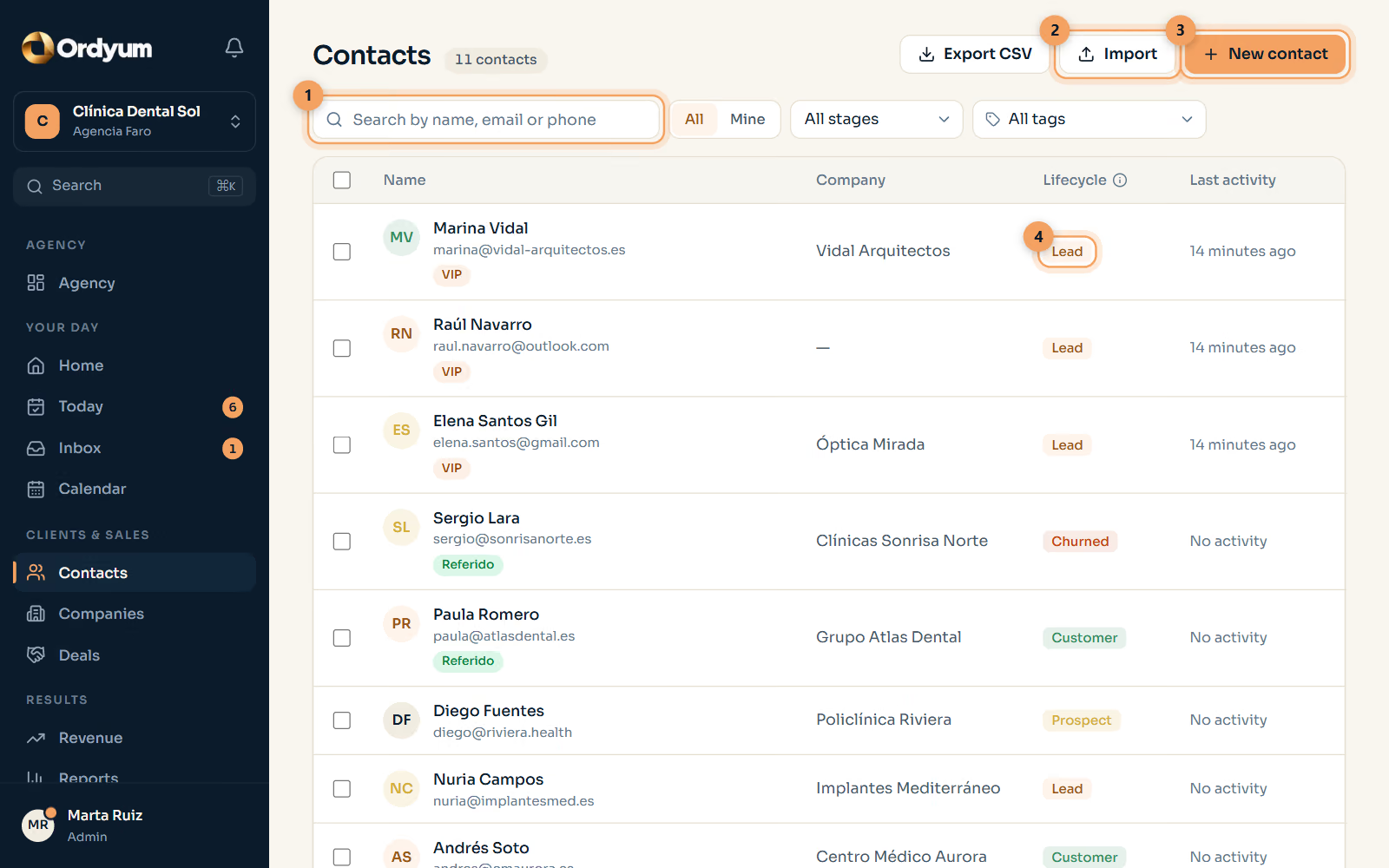
Contacts: everyone you sell to
Everyone who writes to you, fills in a form or buys from you ends up here. Leads from your website and ads arrive on their own; you can also add people by hand or import a list.
- 1Search by name, email or phone. The buttons next to it filter by stage, by tag or show only yours.
- 2Import: bring your current list from Excel or another CRM (CSV file). You match the columns and decide whether duplicates are skipped or merged.
- 3New contact: add someone by hand, for example after a phone call.
- 4Lifecycle: where each person stands. Lead (just arrived), Prospect (you’re talking), Customer (bought) or Churned.
Chapter 4
A contact’s card
Everything about a person is on their card, so anyone on the team can pick up the conversation where it was left.
- 1Name, stage, tags and how to reach them. Use Edit to change any detail.
- 2Timeline: write a note or log a call, meeting or email. Everything stays in order, with who did it and when.
- 3Conversations: their WhatsApp or email messages, if the inbox is connected.
- 4Tasks and deals: what’s pending with this person and what you could sell them. Use + to add one.
Chapter 5
Deals and the pipeline
Each column is a stage of how you sell, and each card is a possible sale with its amount. When you move forward with a customer, drag the card to the next column.
- 1Board or List: the board is for moving cards; the list, for sorting and exporting.
- 2A deal: amount, company and its next task. In red, the task is overdue.
- 3Edit stages: rename the columns to match how you sell (for example Visit, Quote, Signed).
- 4New deal: create a possible sale and link it to a contact.
Chapter 6
Today: what you have to do
The Today page is your to-do list. Start your day here so no customer is left without an answer.
- 1The counters: overdue tasks, tasks for today, new leads and deals with no next step. Aim for zero in red.
- 2New leads to contact: people who just arrived. The label shows how long you have left to reply in time.
- 3Overdue: tasks whose date has passed. Tick the circle when you finish one.
- 4New task: a reminder with a date, linked to a contact or a deal.
Chapter 7
Inbox: email and WhatsApp
Read and answer your customers’ emails and WhatsApp messages without leaving Ordyum. Each conversation is linked to the contact’s card.
- 1Filters: open conversations, the ones waiting for your reply, yours or unassigned.
- 2The conversation, in order. The ticks show whether your message was delivered and read.
- 3Write your reply and press Enter. Add note leaves an internal comment the customer never sees.
- 4Snooze, close, or create a deal or a task straight from the conversation.
Chapter 8 Admins only
Connect where your leads come from
For leads to arrive on their own, connect your website and ads once. From then on, every form sent becomes a contact with its campaign and a follow-up task.
- 1Settings → Integrations: everything you can connect, with the steps for each.
- 2WordPress plugin: download it, install it on your site and press “Connect with Ordyum”. No code and no keys to copy.
- 3Ordyum URL: the address the plugin asks for. Copy it with one click.
Chapter 9
Reports: what’s working
After a few weeks of work, reports tell you how much you sell, how many deals you close and where you lose them.
- 1Choose the period: 30 days, 90 days, this year or your own dates.
- 2Key numbers: revenue won, win rate, average deal and sales cycle. The ⓘ explains each one.
- 3Conversion funnel: how many deals reach each stage. A big drop shows where you lose customers.
Chapter 10 Admins only
Your team
Invite the people who work with you. Each one sees and does only what their role allows.
- 1Invite member: type their email and choose a role. They get an email to join.
- 2Role: Admin (everything), Manager (pipelines and rules), Sales (works the pipeline) or Viewer (read only, for your client).
- 3Pending invitations: resend or cancel the ones not accepted yet.
Chapter 11
Your 10-minute daily routine
Using a CRM is a habit. Do this every morning and nothing slips through.
- 1Open Today and answer the new leads first: the sooner you reply, the more you close.
- 2Clear the overdue tasks: do them or move them to a realistic date.
- 3Check the inbox for messages waiting for a reply.
- 4Move the deals that progressed and give each one a next task.
- 5After every call, write a two-line note on the contact’s card.
Ready to try it?
Start a free trial, or open the demo: a workspace with sample data and no sign-up.